 Slae.ru
How To Customize The Dock On Mac
 Канал:
 How To Customize The Dock On Mac
In this quick tech how to video were going to take a look at a few different ways that we can customize our Macs dock.
The dock is the bar here at the bottom that allows us quick access to commonly used apps or open programs.
I keep mine pretty basic as you can see here but lets take a look at the options we have.
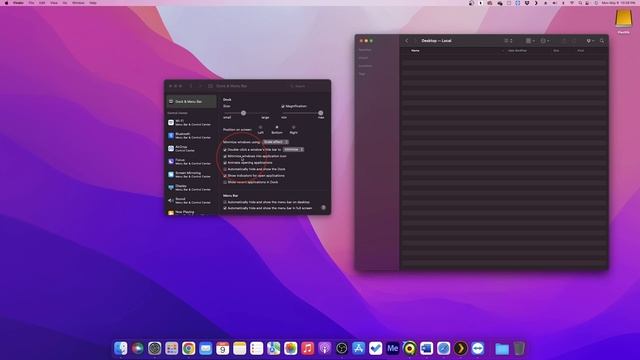
To open the dock preferences you can either right click here to the right in the blank space and then choose dock preferences or you can open your system preferences and once inside of here then choose dock and menu bar.
Here is where you find your customization options.
Well start at the top and work our way down.
First you can change the size of the dock icons by using the size slider.
Next if you enable magnification and then hover over top of the dock youll see the effect it gives.
You can change the size of the magnification by again using the slider.
Next we can change the position of the dock by choosing that here.
If we want it for instance on the left instead of the bottom.
After that you can customize the animation used while minimizing a window.
The default is genie which youll see when I minimize this window it kind of has a twist or genie effect to it.
If I change the option to scale the animation is a lot simpler.
Next double clicking in a windows title bar has a couple of options also.
Default is zoom which youll see when I double click here it zooms or scales the window up and down.
The other option is minimize and when you double click now it minimizes into the tray.
A useful option here is when minimizing a window or app you can have the window minimize into the apps icon.
Ill show you what that looks like so you have an idea.
I keep mine checked so if I minimize the finder window here it minimizes into itself.
If I uncheck that though and minimize youll see it now minimizes to the right of the dock where you can see it but takes up more space.
The next is another animation option whether or not to animate while opening an app.
After that is another often used option.
You can automatically hide your dock when this is enabled.
This opens up your desktop and when you need it just move your cursor to the dock area and it will then appear.
After that we have the open applications indicator which places a small dot under the icon of apps you have open and finally the option to show your recently opened applications.
Those are the customizations that you can make to your dock.
One last thing well look at is adding and removing app icons.
Ill open launchpad and say we want to add a quick shortcut icon for Brackets.
To add it to your dock just simply click and hold on the icon and then drag it to where you want it in the dock.
Let go and it will pin it there.
Now to remove and icon from the main desktop you have two ways.
First just click and drag it out of the dock high enough until the word remove appears and then release.
It will then remove it.
The other is just by right clicking on the icon options and then remove from dock.
And thats how you customize your dock on a Mac.
Thanks for watching! Please like and subscribe and stay tuned for more quick tech how-to videos.
Make sure to subscribe to the channel!
macdock customizedock mactutorial quicktechvideo howto tutorial
Похожее видео

⇒Расскажите об этом видео How To Customize The Dock On Mac, своим друзьям в социальных сетях.
Ссылка на страницу с видео:
HTML-ссылка на страницу с видео:
Код для вставки плеера:*15 Ноября 2022, 20:49 | Катя Пишет: Как интересно придумано, не только автомобили и мотоциклы на выставке, но и дополнительный антураж, что создает уже совершенно другую обстановку в музее. Но и за подарочек спасибо)... Подробнее...
*16 Ноября 2022, 11:06 | Юра Пишет: Машина легенда своей эпохи. Это сейчас она смотриться не очень, но в свое время это был прорыв. Простая и надежная машина для людей. Вроде хотят возродить этот бренд под новым авто.... Подробнее...
*16 Ноября 2022, 14:35 | Игорь Вахрушев Пишет: Красноречивое фото. Сочетание храма, зданий разных эпох, широкого современного проспекта с новейшими на тот момент автомобилями. Здесь же испуганно замершие на пешеходном переходе приезжие. Есть в этом всём большой советский стиль.... Подробнее...
*15 Ноября 2022, 21:41 | Рига Пишет: Так зарождалась эпоха отечественных автомобилей! Раньше умели делать, что наши деды,отцы и сыновья продолжали ездить. В таких машинах есть своя «душа», они хоть и просто выглядят, без разных наворотов, как сейчас. Зато они надежны и привлекают внимание. Хотелось бы вернутся... Подробнее...
*16 Ноября 2022, 22:18 | Анастасия Ворох Пишет: Насколько же изящная машина, вот умели раньше делать эксклюзивы конечно. Чего стоит эта форма и салон, сразу чувствуется всё великолепие того времени! Цвет довольно приятный, видно очень грамотный уход производится за машиной.... Подробнее...
*16 Ноября 2022, 01:04 | Алина Пишет: Не смотря на то, что такой Москвич уже ретро, до сих пор единично встречаю его по стране. Не могу сказать, именно этого года выпуска или ближайших, но очень похож. Непривычная панель такая)... Подробнее...
*16 Ноября 2022, 23:34 | Ольга Пишет: Умели же делать тогда, обидно, что так и не дошло в производство. Сейчас таким конечно уже врят ли удивишь, но в то время эта машина была бы точно популярна.... Подробнее...
*16 Ноября 2022, 09:30 | Стас Пишет: Это как другой мир. Столько моделей из прошлого. Выглядят они по разному. Для тех кто в возрасте они навевают ностальгию, а для молодых это просто старые модели без иноваций и наворотов.... Подробнее...